

Introduction
Gaming has become more enjoyable as players gain access to different input devices, customizable controls, and flexible ways to interact with their favorite games. While keyboards and mice remain popular among PC gamers, controllers provide a comfortable alternative for people who prefer playing with buttons, triggers, analog sticks, and familiar layouts. Controllers can be particularly useful for racing games, sports titles, action adventures, platformers, and games designed around console-style gameplay. Understanding how to configure a controller correctly can make a significant difference in comfort, responsiveness, and overall gaming experience.
The phrase how to use controller uggcontroman is relevant to players searching for information about controller setup, control customization, compatibility, and practical gaming usage. Before exploring any controller-related platform or tool, users should understand the basic principles of connecting a device, configuring buttons, adjusting sensitivity, and checking whether their hardware and software work together. Learning these fundamentals makes it easier to experiment with different configurations without becoming frustrated by technical problems.
This guide explains controller usage from a beginner-friendly perspective, including setup preparation, connection methods, configuration, gaming techniques, common mistakes, and troubleshooting. Since specific features may vary depending on the controller, operating system, and software involved, the instructions focus on general controller principles rather than assuming that every Uggcontroman-related feature is available on every device.
1. Understanding Controller-Based Gaming
A gaming controller is an input device that allows players to interact with digital games through physical buttons, triggers, directional controls, and analog sticks. Unlike a traditional keyboard, which offers numerous separate keys, a controller combines frequently used actions into a compact design. This arrangement can make gaming feel more natural, especially when players want to sit back, relax, and enjoy longer sessions without keeping their hands in a keyboard-focused position.
Most modern controllers include two analog sticks, a directional pad, several action buttons, shoulder buttons, triggers, and menu controls. Each component performs a different role depending on the game. Analog sticks usually control movement or camera direction, while face buttons activate jumping, interacting, attacking, or other actions. Triggers often support gradual input, making them particularly useful in racing games, where pressure can influence acceleration or braking.
Understanding these basic controls is the first step toward learning how to use a controller efficiently. Players should become familiar with the physical layout before entering a competitive match or difficult game level. Spending a few minutes testing the buttons helps build muscle memory and makes it easier to respond quickly during gameplay.
2. Preparing Your Controller Before Setup
Before connecting a controller to your computer, console, or mobile device, make sure the hardware is ready. Check whether the controller has enough battery power, whether its cable is working properly, and whether the device has visible damage. A controller with a weak battery or faulty connection may experience interruptions that can be mistaken for software problems.
If you are using a wireless controller, charge it before beginning configuration. For wired devices, inspect the USB cable and connector to ensure they are secure. Some controllers require a specific cable for data transfer rather than charging alone, so using a compatible cable is important when connecting to a computer.
You should also identify the model of your controller and the device you intend to use it with. Compatibility can differ between Windows computers, Android phones, gaming consoles, and other platforms. Checking these details beforehand helps prevent unnecessary troubleshooting and gives you a better understanding of the available settings.
A clean gaming environment is another useful preparation step. Keep the controller free from dust, avoid placing liquids nearby, and make sure there is enough room to hold the device comfortably. These simple habits can improve usability and help maintain the controller over time.
3. Connecting a Controller to Your Device
Wired connection
A wired connection is often the easiest method for beginners because it usually requires fewer steps. Connect the controller to your computer or compatible device using the appropriate USB cable. Once connected, the operating system may automatically recognize the device and install the required drivers. Some controllers may need additional setup, depending on their manufacturer and compatibility.
After connecting the controller, open the game you want to play and check whether its settings recognize the device. Look for controller options, input settings, or control menus. If the game detects your controller, you can begin testing basic buttons and movement.
Wireless connection
Wireless controllers commonly connect through Bluetooth or a dedicated wireless receiver. Bluetooth pairing typically involves activating the controller’s pairing mode and selecting it from the device’s Bluetooth menu. The exact button combination depends on the controller model, so the manufacturer’s instructions should be followed when necessary.
Wireless gaming offers greater freedom of movement and fewer cables around your desk. However, battery levels, signal interference, and connection distance may affect performance. Players who experience occasional input delays may want to test a wired connection to determine whether wireless connectivity is contributing to the issue.
Regardless of the connection method, verify that the controller remains connected before starting an important gaming session.
4. Exploring Controller Uggcontroman Settings

Learning how to use controller uggcontroman involves understanding the settings that may be available through the controller, game, or associated configuration software. The actual interface and options depend on the specific product or software being used, so it is important not to assume that every controller offers identical features.
Typical controller configuration menus may include button mapping, sensitivity adjustment, vibration settings, connection preferences, and calibration options. These controls allow players to personalize the experience according to their comfort and gaming style. A beginner may prefer default settings initially, while experienced users might change certain controls to make specific actions easier.
Button mapping is one of the most useful customization features when supported. It allows users to assign actions to different buttons, making it possible to create a layout that feels more natural. For example, a player may prefer placing a frequently used action on a button that is easier to reach during gameplay.
Sensitivity settings can also influence the experience. Higher sensitivity may make camera movement faster, while lower sensitivity can provide more controlled adjustments. Finding a comfortable balance usually requires experimentation rather than selecting the highest available setting.
Before making several changes simultaneously, adjust one setting at a time. This approach makes it easier to understand what improves the experience and what creates unwanted behavior.
5. Customizing Button Layouts for Different Games
Every gaming genre uses controllers differently, which means a single control layout may not be ideal for every title. In platform games, jumping and movement are usually the most important actions. Racing games depend heavily on steering, acceleration, and braking. Action games may require quick access to attacks, defensive abilities, inventory items, and camera movement.
Customizing button layouts can help players reduce unnecessary hand movement. If a particular action is used repeatedly, assigning it to a comfortable button may improve accessibility and convenience. However, players should avoid changing too many controls at once because unfamiliar layouts can make gameplay more difficult during the learning process.
When exploring how to use controller uggcontroman, consider starting with the default button arrangement before experimenting with customization. Play a few rounds or complete a simple level to identify controls that feel uncomfortable. Afterward, make small adjustments and test them again.
A useful layout should be easy to remember, comfortable during extended play, and suitable for the game’s mechanics. The goal is not to create the most complicated configuration but to develop one that supports consistent gameplay. If you frequently switch between games, keeping standard layouts for different genres may help you avoid confusion.
6. Adjusting Sensitivity and Responsiveness
Sensitivity controls how quickly an input produces movement or camera changes. Although sensitivity settings are often associated with mouse gaming, many controller-supported games also offer adjustable stick sensitivity. These settings can influence how quickly the camera turns, how accurately players aim, and how smoothly they navigate environments.
For example, a higher camera sensitivity may be useful when a game requires rapid turns or when players need to look around quickly. However, excessive sensitivity can make aiming difficult because small stick movements may create large changes on the screen. Lower sensitivity often provides more controlled movement, but it may require additional time to turn toward distant targets.
The best settings depend on personal preference, the game itself, and the type of controller being used. Some games provide separate sensitivity options for horizontal and vertical movement, while others allow adjustments for aiming, camera rotation, or movement speed.
Players should begin with moderate settings and test them in a low-pressure environment. If the camera moves too quickly, reduce sensitivity gradually. If movement feels slow or restricted, increase it slightly. Consistent testing helps identify settings that feel natural without sacrificing precision.
7. Learning Basic Gaming Techniques
A controller can provide an enjoyable gaming experience, but effective usage also depends on practice. Players who are unfamiliar with analog sticks may initially struggle with precise movement. The best way to improve is to practice simple actions regularly instead of immediately attempting complicated techniques.
Start by moving your character in different directions, walking around obstacles, turning the camera, and testing basic actions. In racing games, practice steering through gentle turns and controlling acceleration. In platform games, learn how to combine movement and jumping. In action games, experiment with defensive movements and basic attacks.
One important technique is avoiding unnecessary pressure on analog sticks. Players sometimes push sticks too forcefully when trying to move faster or respond under pressure. Smooth and controlled movements are usually more effective and can reduce fatigue during longer sessions.
Another useful skill is learning to operate buttons without constantly looking down at the controller. Familiarity with the button layout gradually improves reaction time and confidence. Short practice sessions are often more productive than long sessions focused on repeating the same difficult action.
8. Using Controller Uggcontroman for a Comfortable Experience
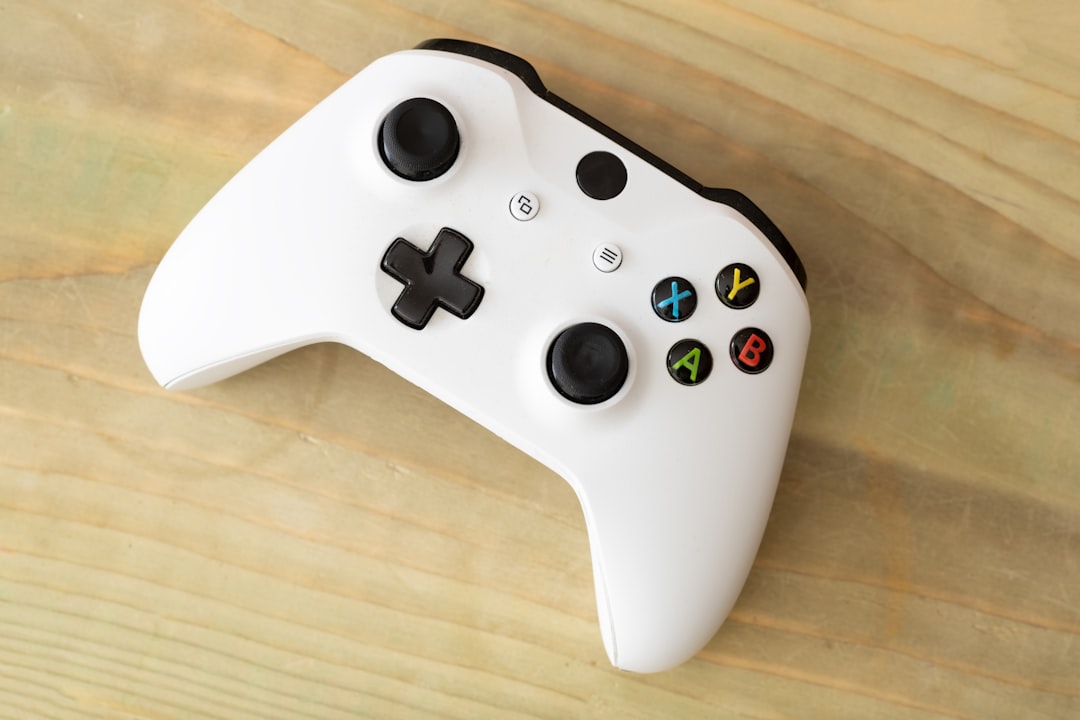
Comfort is an important part of controller gaming because players may use the device for extended periods. A controller should fit naturally in the hands without forcing the fingers into uncomfortable positions. If your hands feel tense, take a break and reconsider your grip or control layout.
When researching how to use controller uggcontroman, comfort should be treated as an important part of configuration rather than an afterthought. Players can benefit from adjusting button assignments, sensitivity, vibration, and other available settings to create a more relaxed gaming experience.
Vibration feedback, for example, can make certain games feel more immersive. It may communicate impacts, movement, environmental effects, or other in-game events. However, some players prefer disabling vibration because it can be distracting or consume additional battery power on wireless devices.
You should also consider your seating position. Keep your shoulders relaxed, avoid bending your wrists excessively, and hold the controller without squeezing it too tightly. If you experience discomfort, stop playing and allow your hands to rest. Comfortable posture and reasonable breaks can help make gaming more enjoyable.
9. Testing Your Controller Before Playing
Testing your controller is a valuable step after connecting it or making configuration changes. Rather than immediately entering a competitive game, use a simple environment where you can check the device’s behavior without pressure.
Test every button, trigger, and analog stick. Confirm that directional inputs work correctly and that the controller does not disconnect unexpectedly. If the game offers a controller test screen, use it to check whether inputs are registered accurately. Some operating systems also provide built-in device settings that allow you to view connected hardware and examine its basic functionality.
Pay attention to analog stick movement. If your character moves even when the stick is untouched, the controller may be experiencing stick drift. If a button does not respond consistently, the problem may involve the controller itself, connection quality, configuration settings, or the game.
Testing after every major adjustment is particularly useful. It helps players determine whether a change improved performance and prevents several configuration problems from appearing at the same time.
10. Troubleshooting Common Controller Problems
Controller problems can occur because of connection issues, outdated drivers, incorrect settings, low battery power, or hardware wear. Identifying the cause is usually easier when you test one possible solution at a time.
Controller not detected: Disconnect the controller and reconnect it. If using wireless connectivity, check the pairing status and try connecting again. Restarting the game or device may also help.
Buttons are not responding: Check the game’s control settings and make sure the controller is selected as the active input device. Test the buttons in another compatible game or controller test environment to determine whether the issue is specific to one application.
Input delay: If actions appear on the screen later than expected, check the wireless signal, battery level, and connection stability. Try moving closer to the device or using a wired connection if supported.
Analog stick drift: If the character moves without input, check whether the game offers a dead-zone adjustment. A slightly larger dead zone may help in some cases, but persistent drift may indicate a hardware issue requiring repair or replacement.
Incorrect button mapping: Restore the default controls and test them again. If the controller works correctly with default settings, reconfigure the buttons carefully and verify each change.
When learning how to use controller uggcontroman, troubleshooting should be approached patiently. Avoid installing unknown software or downloading configuration files from untrusted sources just to fix a controller issue. Use manufacturer documentation and trusted device settings whenever possible.
11. Common Mistakes Beginners Should Avoid
Beginners often make a few mistakes that can interfere with controller performance. One common problem is changing multiple settings before understanding how the original layout works. Although customization can be useful, excessive changes may create confusion and make it difficult to identify the source of an issue.
Another mistake is ignoring compatibility. A controller that works with one device may not function identically on another. Players should check whether their controller supports the operating system and game they intend to use rather than assuming universal compatibility.
Some players also overlook battery maintenance. Wireless controllers may behave unpredictably when their battery becomes low, and an interrupted connection can affect gameplay. Charging the device regularly and checking battery status before playing can help prevent unnecessary problems.
Using excessive force on buttons and analog sticks is another habit worth avoiding. Controllers are designed for repeated use, but rough handling may increase wear over time. Players should use smooth movements, keep their devices clean, and store them safely when not in use.
Finally, beginners should avoid changing sensitivity settings simply because another player recommends a particular configuration. Settings that work well for one person may feel uncomfortable for another. Personal testing remains the most reliable way to find an effective setup.
12. Improving Your Gaming Experience Over Time
Developing good controller habits takes time, but small improvements can make gaming more comfortable and consistent. Players should regularly review their settings, especially when switching to a different genre or starting a new game. A configuration that works perfectly for a racing game may not be ideal for a platformer or action adventure.
Practice can also help players improve their coordination. Begin with basic movement and gradually work toward more advanced actions. If a game includes a tutorial, training area, or practice mode, use it to become familiar with the controls before entering more demanding gameplay.
It is helpful to maintain a simple record of your preferred settings for different games. Write down sensitivity levels, button assignments, and other adjustments that work well. This can save time when reinstalling a game, switching devices, or resetting controller settings.
Players can also benefit from learning about their controller’s supported features. Depending on the device, these may include vibration, wireless connectivity, programmable buttons, trigger adjustments, or other customization options. Understanding which features are genuinely supported helps avoid unrealistic expectations and makes configuration easier.
With regular practice and careful adjustment, players can develop a controller setup that feels comfortable, reliable, and easy to use.
13. Controller Usage Across Different Gaming Genres
Controllers are versatile devices that can support many different types of games. Their effectiveness depends on the game mechanics and the player’s preferences. Understanding how different genres use controller inputs can help players develop better habits and choose suitable settings.
In racing games, analog triggers and sticks can provide smooth control over acceleration, braking, and steering. Players may find it easier to make gradual adjustments compared with using keyboard buttons that provide more limited input variations. Sports games also benefit from controller layouts because passing, shooting, movement, and defensive actions can be assigned to familiar buttons.
Platform games generally emphasize movement, jumping, timing, and coordination. Controllers can make these actions feel intuitive because directional movement and jumping are easy to combine. Action-adventure games may use a mixture of camera control, combat, interaction, and navigation, making button familiarity particularly important.
For competitive games, responsiveness and consistency matter more than complicated customization. Players should prioritize comfortable layouts, reliable connections, and settings they can use consistently. Practicing with the same configuration can help build muscle memory and reduce hesitation during gameplay.
14. Maintaining Your Controller for Long-Term Use
Proper maintenance can help keep a controller functioning reliably. Regularly wipe the surface with a soft, slightly damp cloth when appropriate, and avoid allowing moisture to enter buttons, ports, or openings. Follow the manufacturer’s cleaning instructions, particularly when using cleaning products.
Store your controller in a safe location where it will not be exposed to extreme heat, excessive humidity, dust, or accidental damage. If it is wireless, avoid leaving the battery completely depleted for extended periods. Charging and storage recommendations may differ depending on the battery type and manufacturer.
If buttons begin sticking or analog sticks become less responsive, inspect the device carefully. Do not force buttons or attempt complicated repairs unless you understand the process and have suitable tools. For serious hardware issues, professional repair or replacement may be the safer option.
A little care can help preserve the controller’s functionality and make your gaming experience more dependable over time.
Conclusion
Learning how to connect, configure, and operate a controller can make gaming more comfortable and enjoyable for beginners and experienced players alike. From checking compatibility and selecting a connection method to adjusting sensitivity, customizing button layouts, and troubleshooting common problems, every step contributes to a better overall experience.
The key to how to use controller uggcontroman is to understand the basic controller functions, explore available settings carefully, and practice with a configuration that feels natural. Players should avoid unnecessary customization, test their devices before important gaming sessions, and use trusted software and instructions when making changes.
Controller gaming does not require complicated settings or advanced technical knowledge. Starting with the default configuration, learning the buttons, and making gradual improvements is often the most effective approach. With patience, regular practice, and proper maintenance, players can develop better control, enjoy smoother gameplay, and make their gaming sessions more comfortable and rewarding.